Partner Portal User Guide
A complete, screen-by-screen walkthrough for every kind of user — Service partners, Reseller partners, Team members, and BlockWill admins.
BW-3NXPRD). The exact menu you see depends on which
flows are enabled for your account.Video walkthroughs
Two full recordings tour the portal end to end, and every feature has its own short clip embedded in its section below (indexed under "Per-feature clips"). Prefer to read? Every screen is also captured as an annotated still.
Per-feature clips
Each feature has its own short screen recording, embedded in its section below:
- Signing in — 0:13
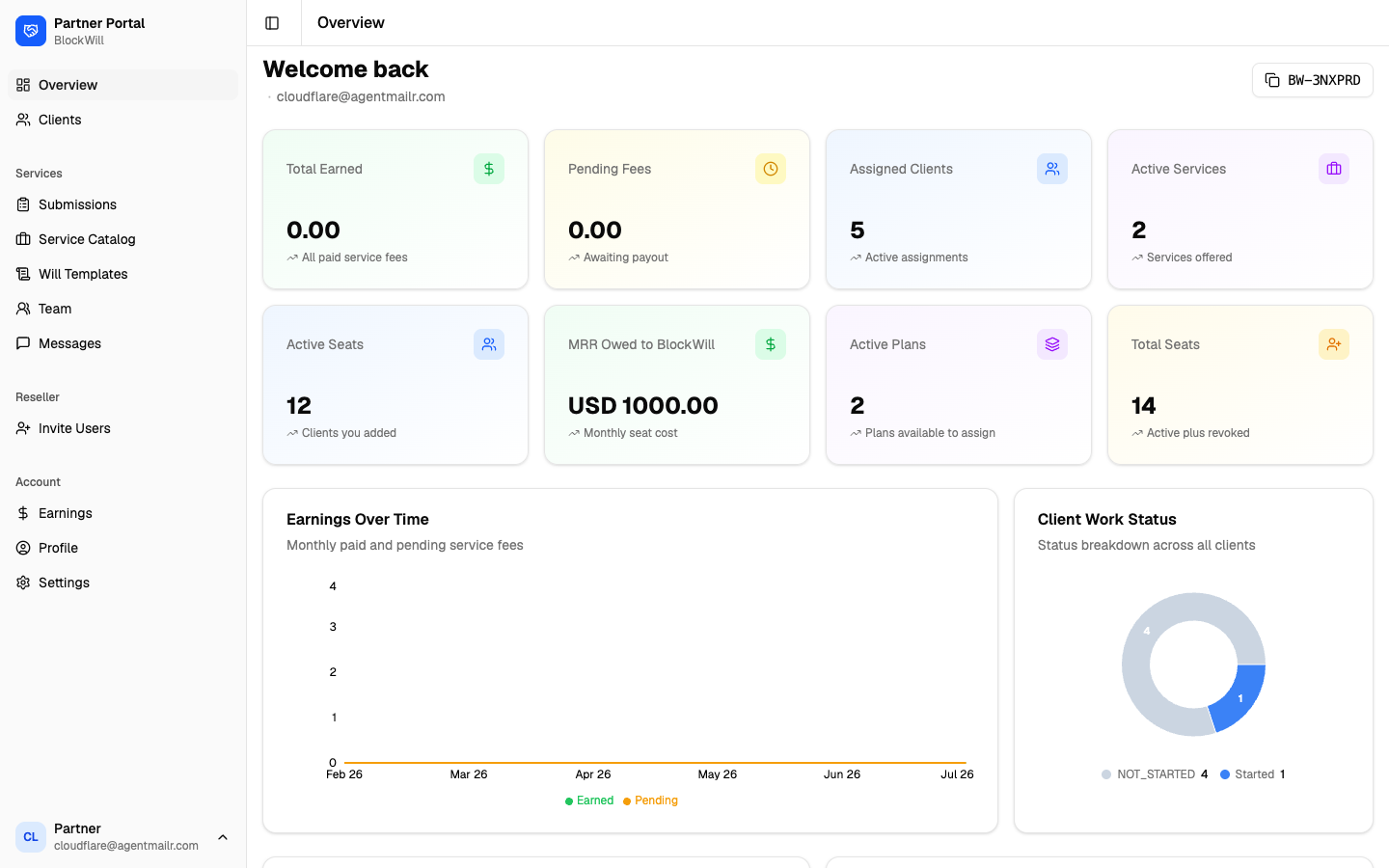
- Overview — 0:10
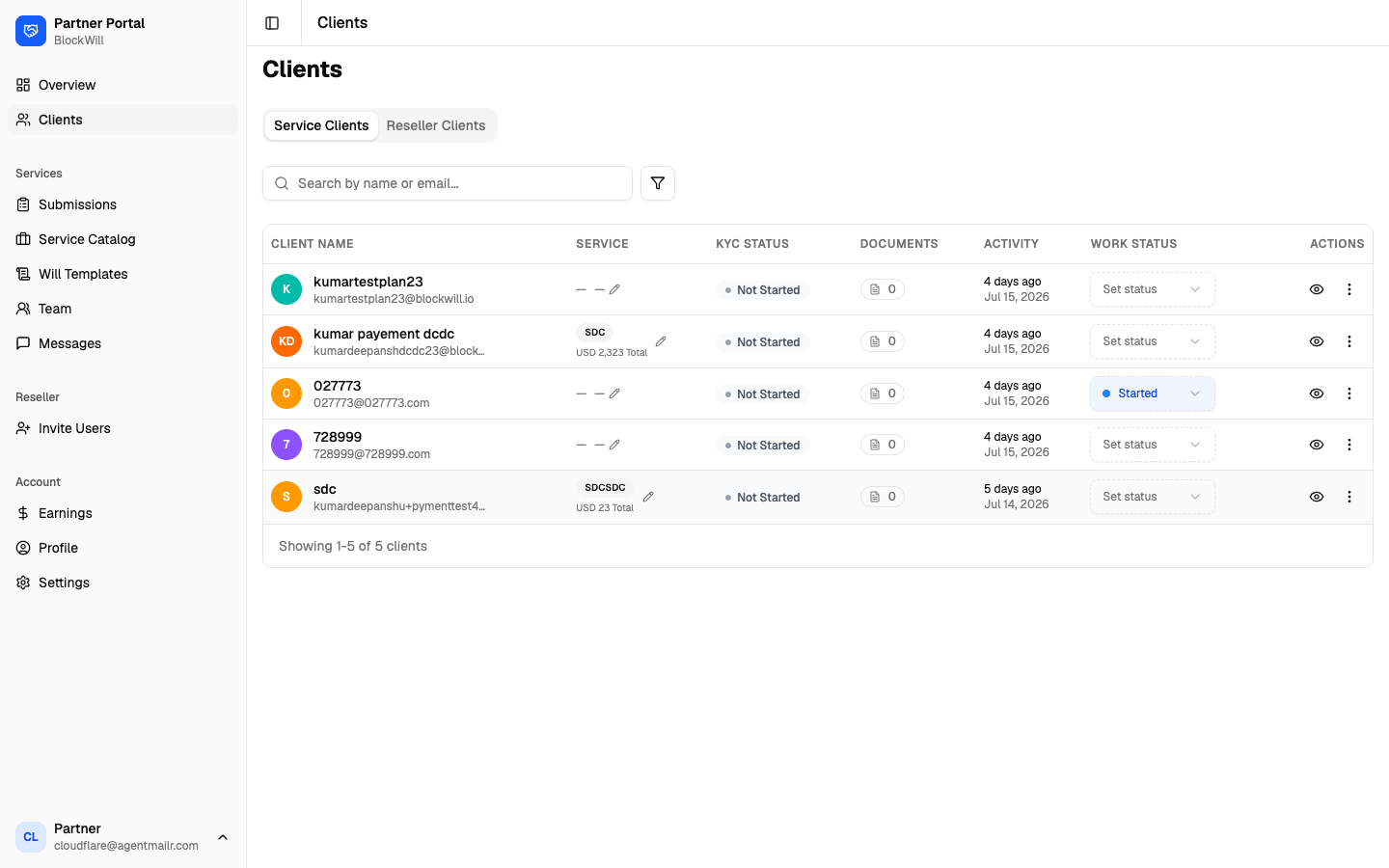
- Clients & detail — 0:15
- Submissions — 0:09
- Service Catalog — 0:10
- Will Templates — 0:10
- Team — 0:10
- Messages — 0:06
- Invite Users — 0:14
- Earnings — 0:09
- Profile — 0:05
- Settings — 0:09
- Team member view — 0:30
- Admin panel — 0:15
What the Partner Portal is
The Partner Portal is where BlockWill partners run their digital-inheritance business: onboard clients, offer paid services, draft and deliver wills, message BlockWill, and track what they earn or owe. An account can combine any of three ways of working.
🧾 Service partner
Do estate-planning work for clients BlockWill assigns. Define services with a fee, complete the work, submit it for review, and get paid by BlockWill.
🤝 Reseller partner
Bring your own clients onto BlockWill on seat-based plans. Invite users, assign plans, and bill your clients directly.
👥 Team member
A sub-account under a Service partner. You only see the clients your partner delegates to you.
Partner flows — what determines your menu
Your left sidebar changes based on the flags enabled on your account
(Services, Reseller, Referrals, plus
My Will for will templates). BlockWill enables these when your account is
approved — you never set them yourself.
| Account type | Sidebar shows |
|---|---|
| Reseller | Overview, Clients, and a Reseller section (Invite Users, Service Catalog, Will Templates) |
| Service | Overview, Clients, and a Services section (Submissions, Service Catalog, Will Templates, Team, Messages) |
| Both | Both sections |
| Everyone | An Account section (Earnings, Profile, Settings) |
Signing in
Open the portal URL. You land on the Sign In screen.
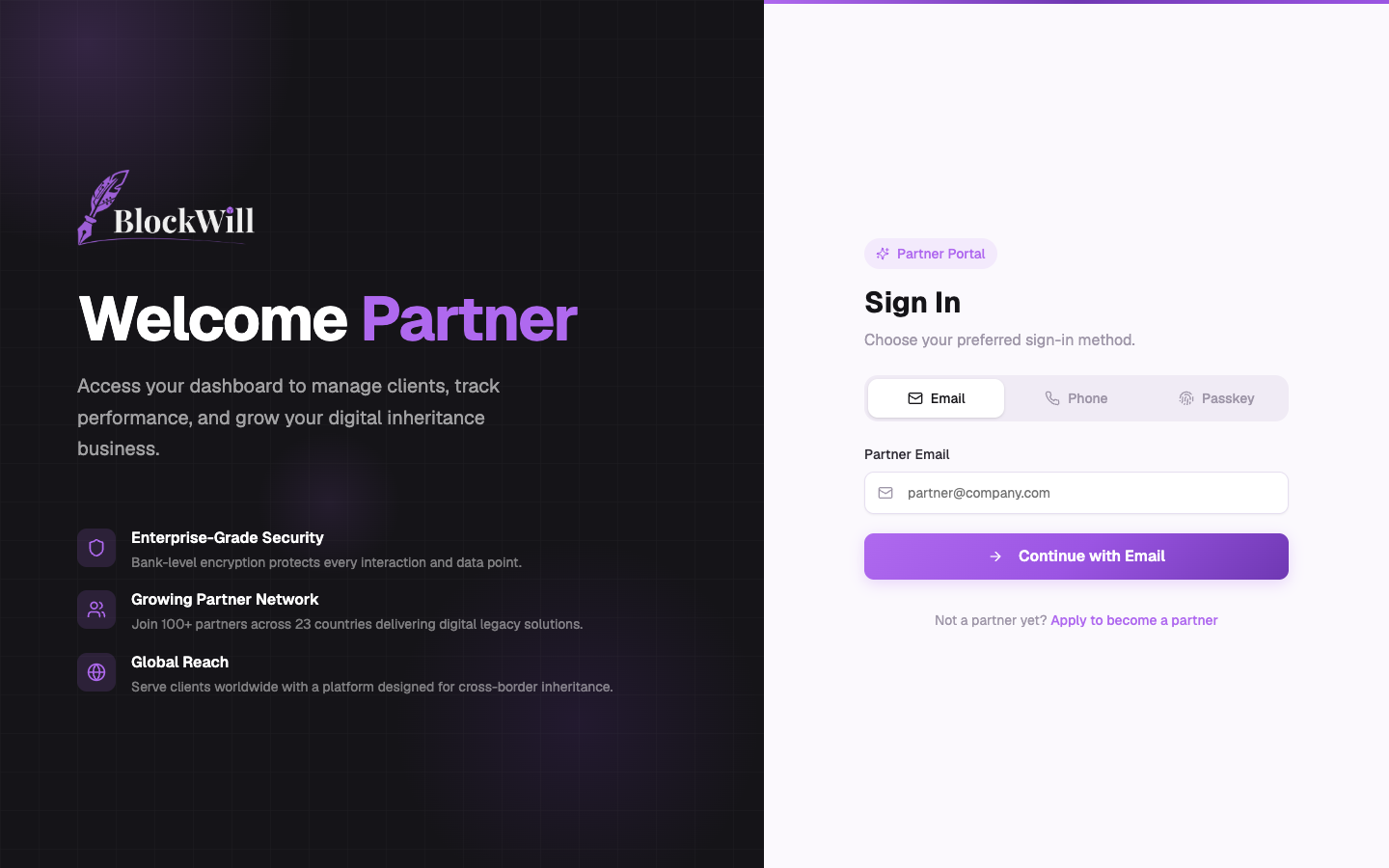
You can sign in three ways using the tabs on the right:
- Email — enter your partner email and click Continue with Email. BlockWill emails a 6-digit code; enter it to finish.
- Phone — enter your number in international format (e.g.
+9715…) and verify with the SMS code. - Passkey — sign in with Face ID, Touch ID, Windows Hello, or a hardware key, if registered.
Email sign-in steps:
- Make sure the Email tab is selected.
- Type your partner email in Partner Email.
- Click Continue with Email.
- Enter the 6-digit code from your inbox.
Not a partner yet? The Apply to become a partner link starts an application.
The dashboard layout
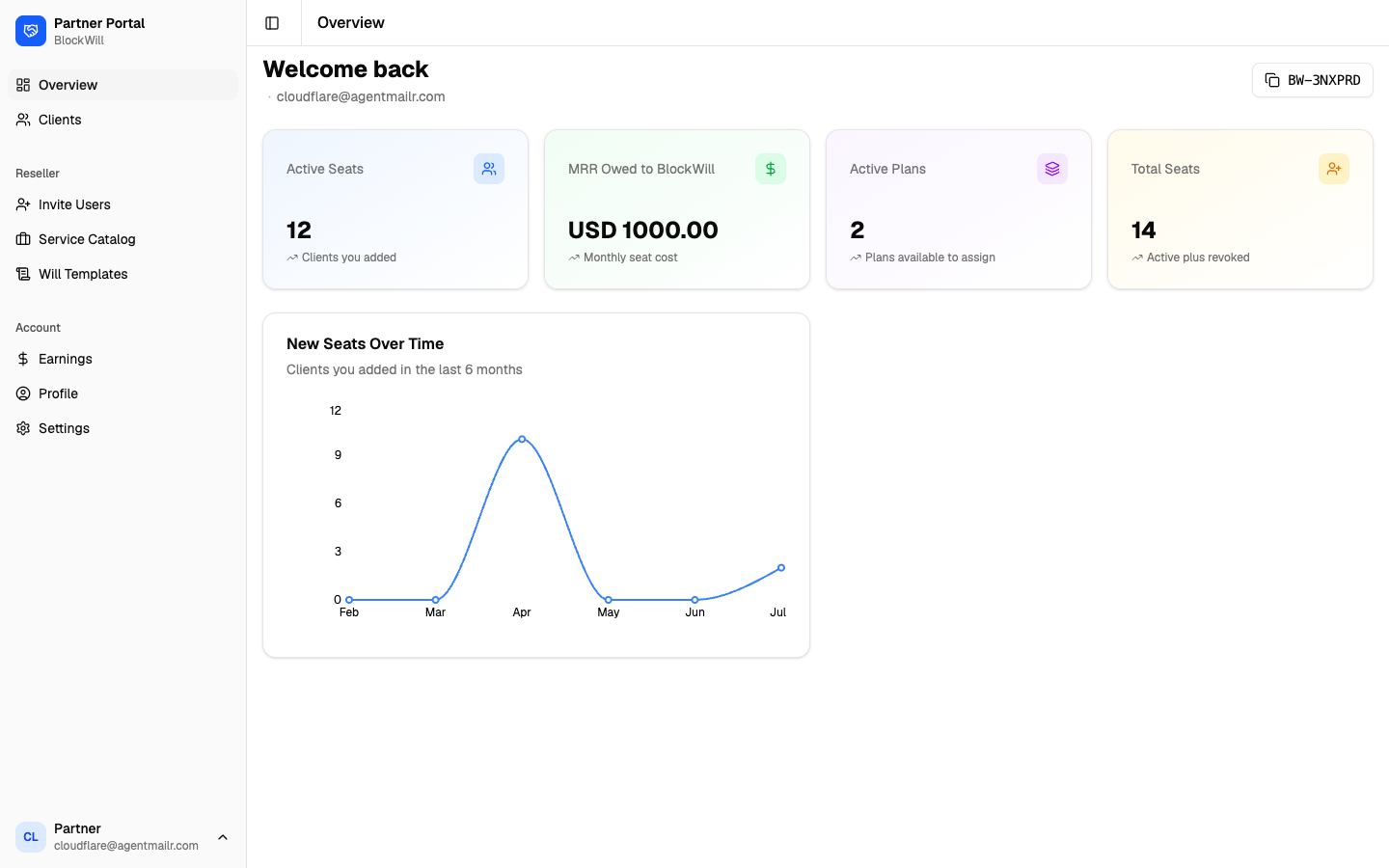
After signing in you land on Overview. Every page shares the same frame:
- Left sidebar — grouped navigation. Toggle Sidebar collapses it.
- Header — the current page name.
- Bottom-left user menu — your name/email; opens Profile, Settings, and Log out.
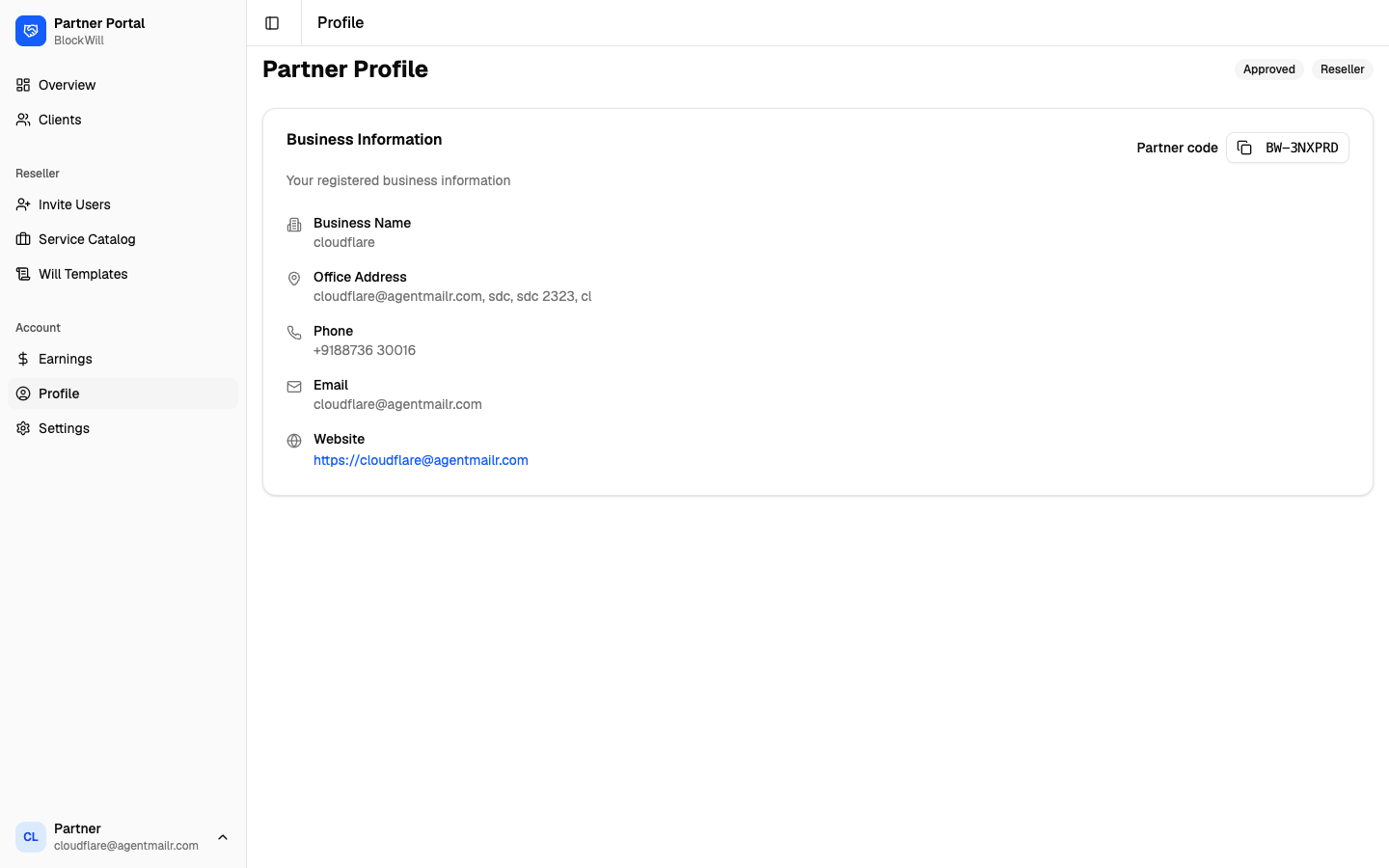
- Top-right partner code (e.g.
BW-3NXPRD) — your unique ID; click to copy.
Reseller partner — Overview
A reseller brings their own clients onto BlockWill on seat-based plans and bills those clients directly.
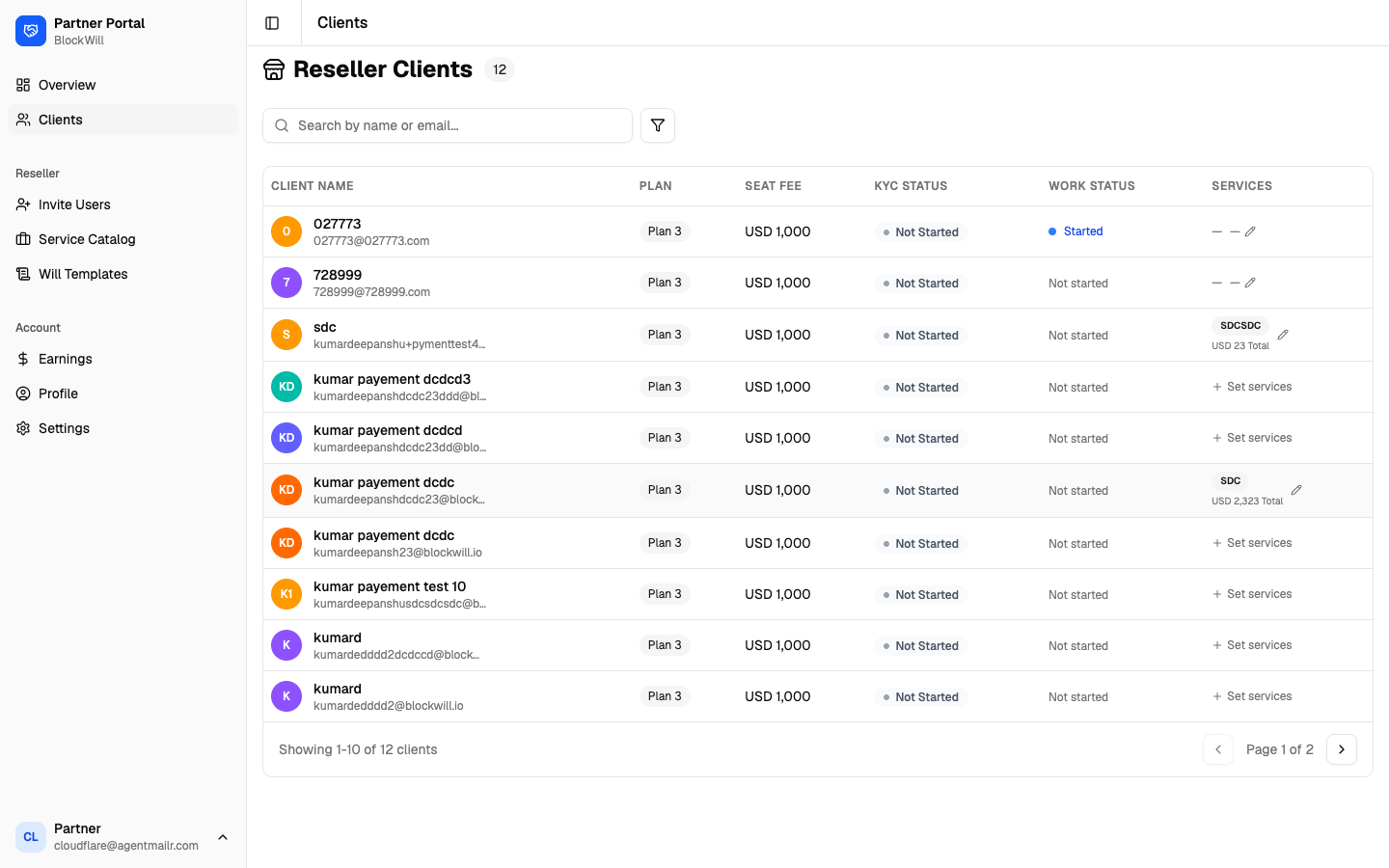
Clients
Invite Users
Where a reseller adds clients — each added user gets a full BlockWill account under one of your plans.
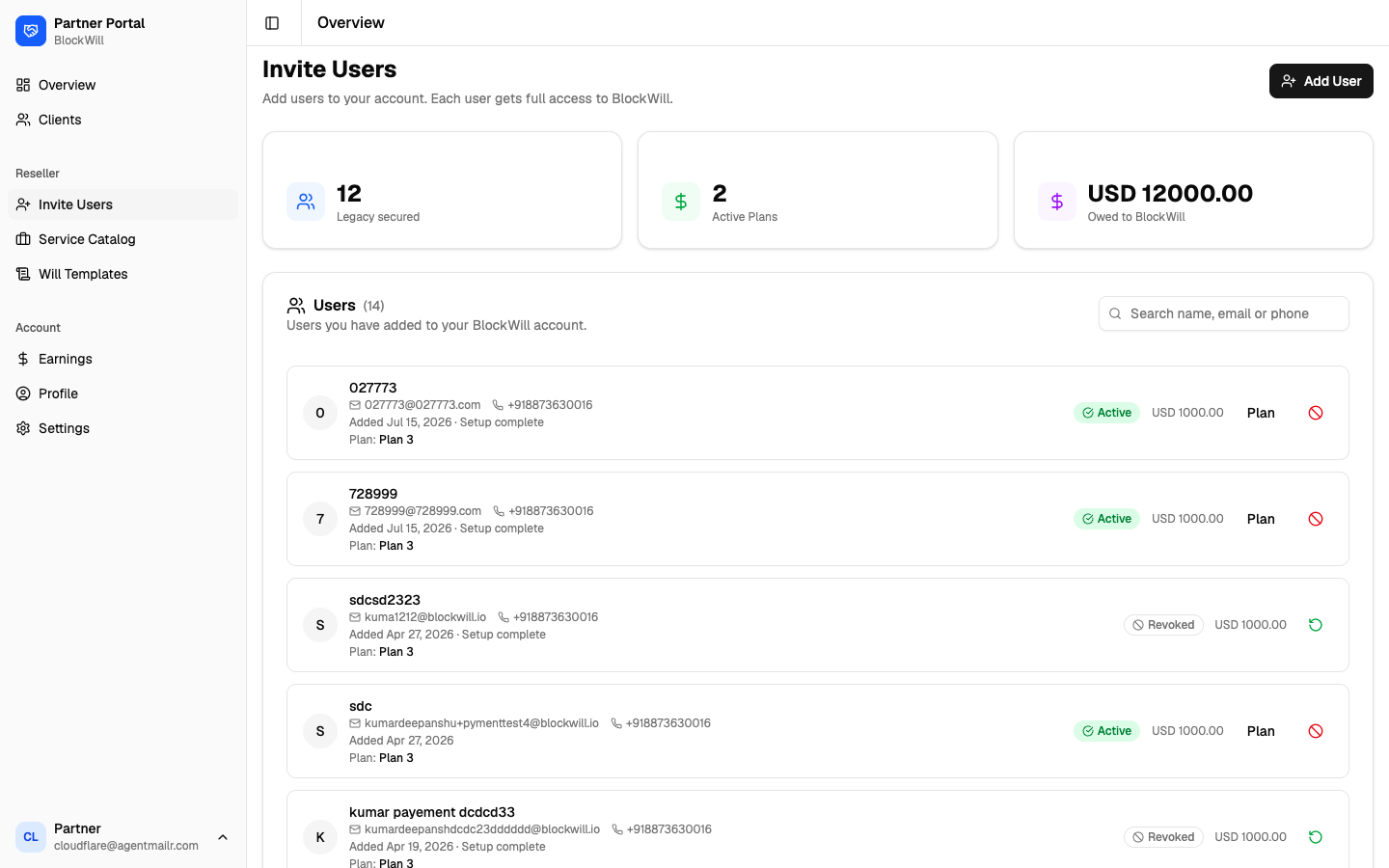
To add a user:
- Click Add User (top right).
- Choose a Plan.
- Enter Full Name, Email, and Phone Number (with country code).
- Click Add User — BlockWill creates the account and emails a welcome message.
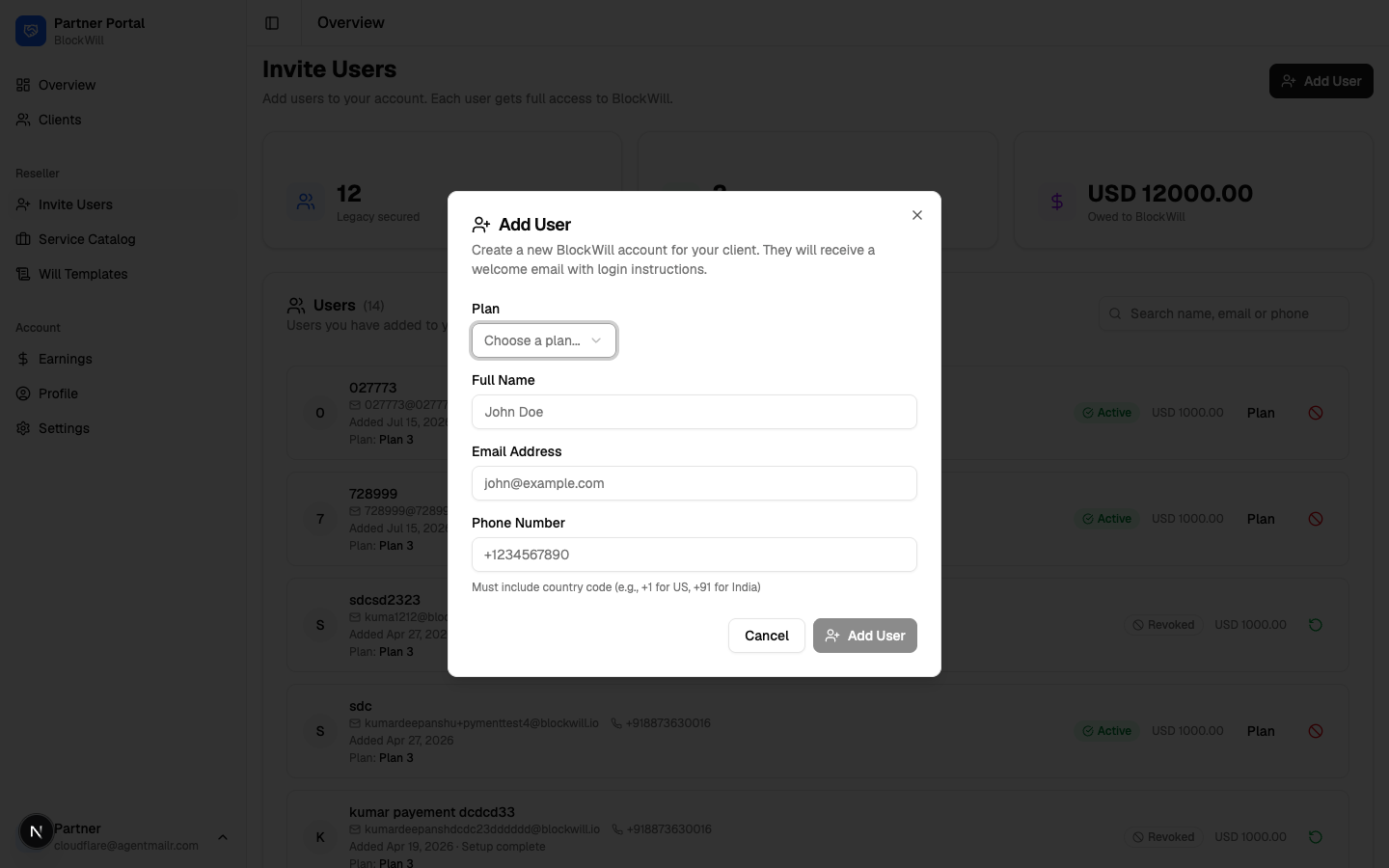
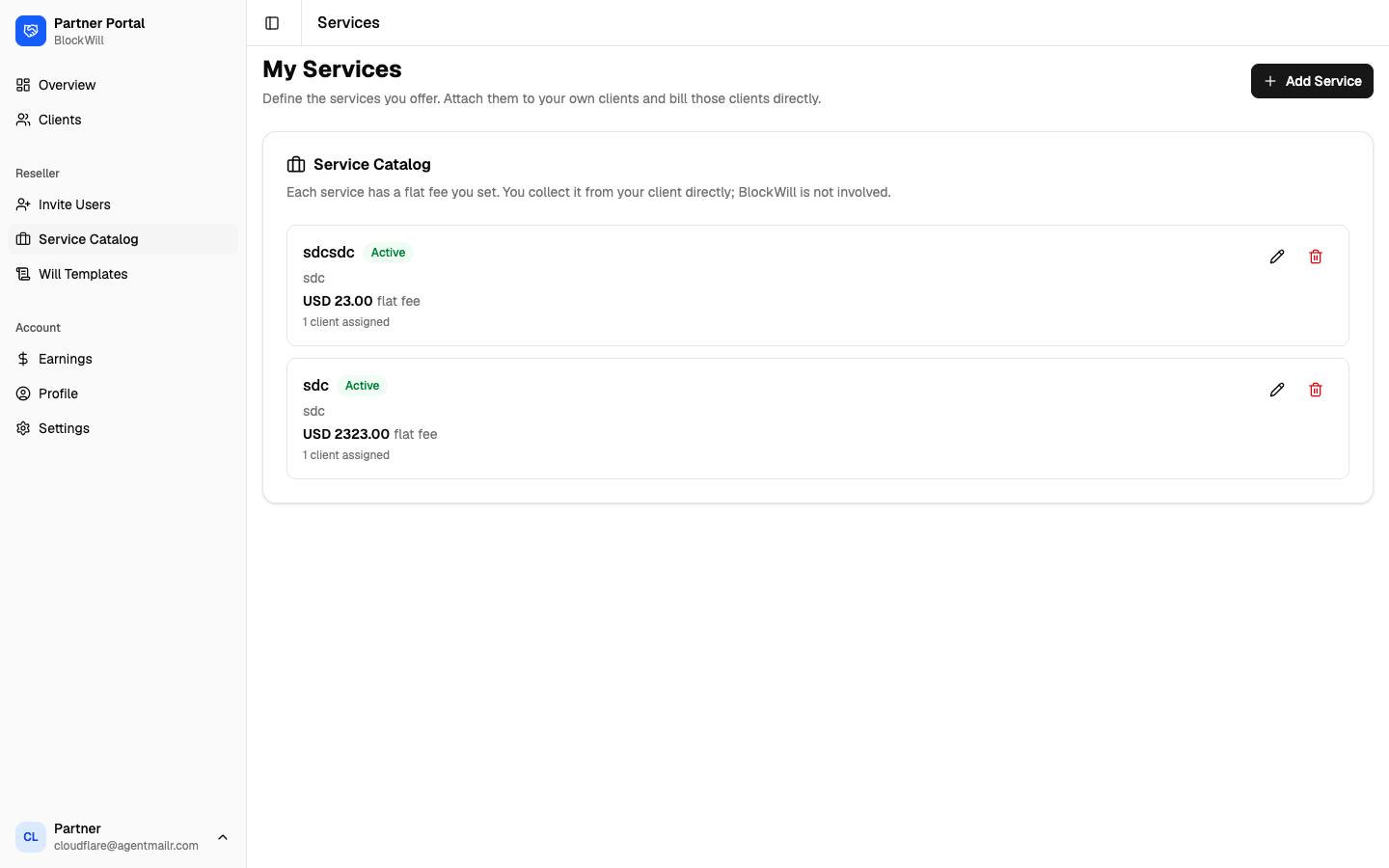
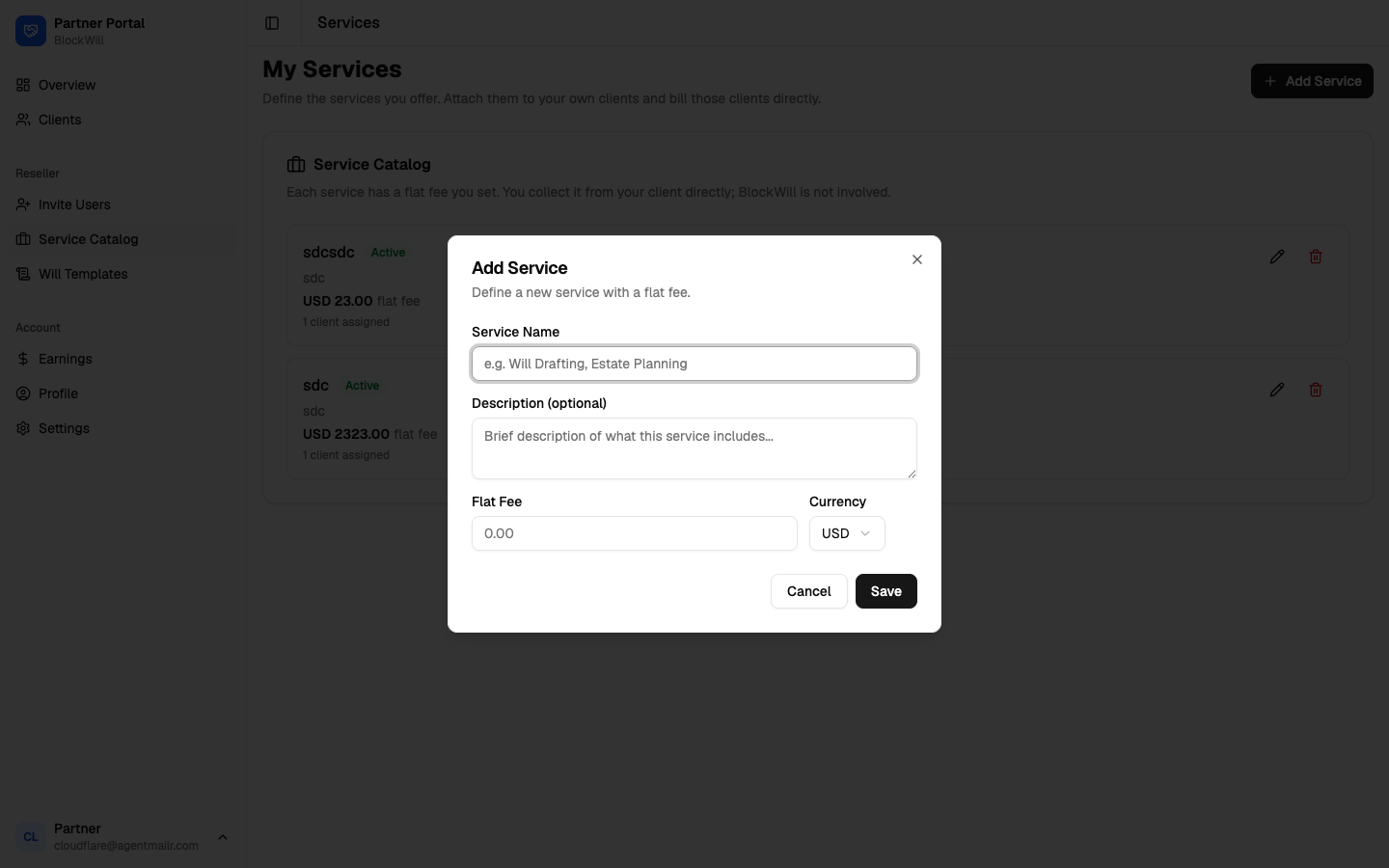
Service Catalog
Define extra services for your own clients. Each has a flat fee you set and collect directly — BlockWill is not involved in payment.
Will Templates
Upload your own will document; BlockWill auto-maps its placeholders to client data so you can generate each client's will from your template.
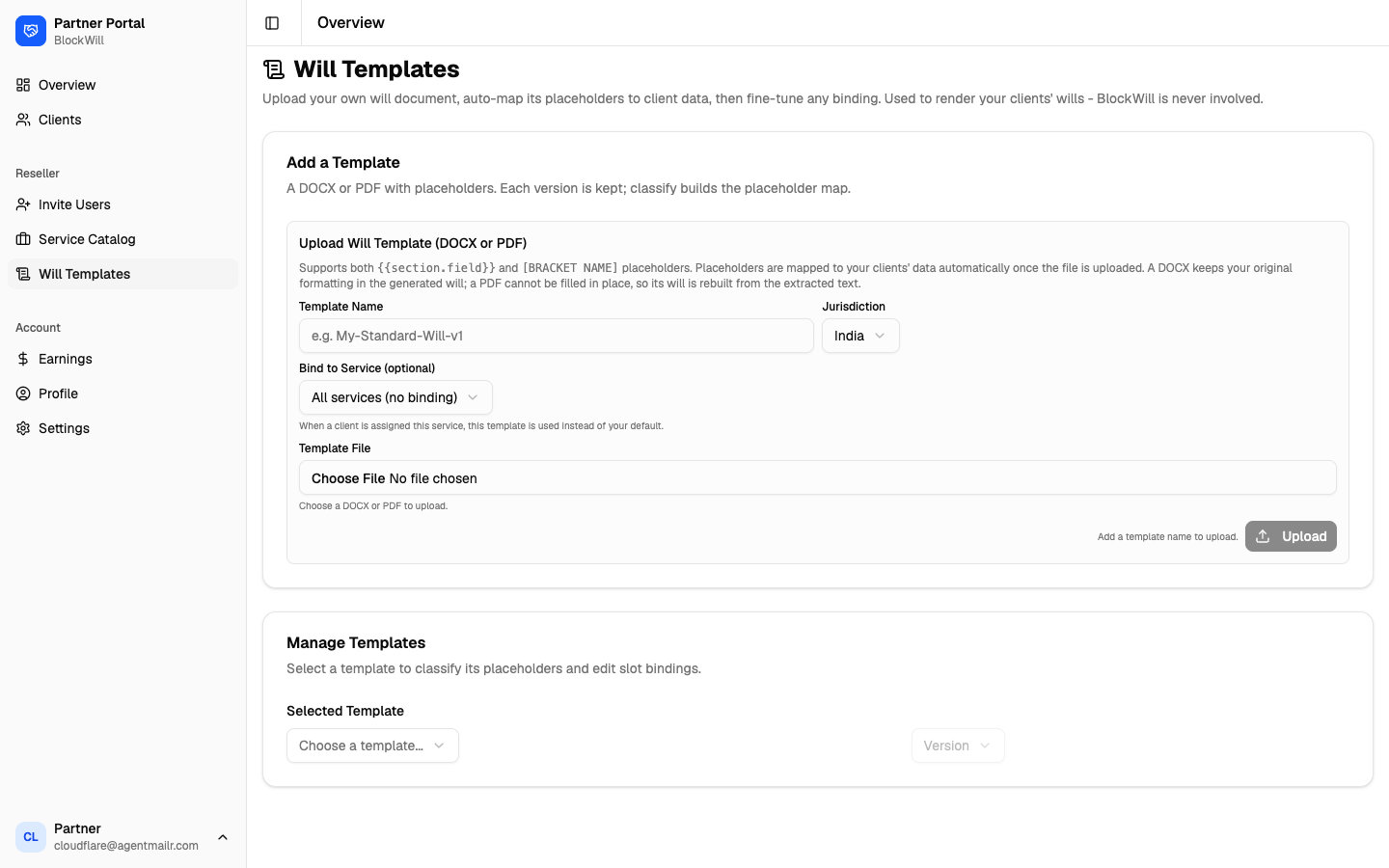
- Upload a DOCX or PDF with placeholders (
{{section.field}}or[BRACKET NAME]). - Add a Template Name and Jurisdiction.
- Optionally Bind to Service.
- Click Upload, then use Manage Templates to classify placeholders and fine-tune each slot.
Service partner — Overview
A service partner does work for clients BlockWill assigns, submits it for review, and gets paid by BlockWill.
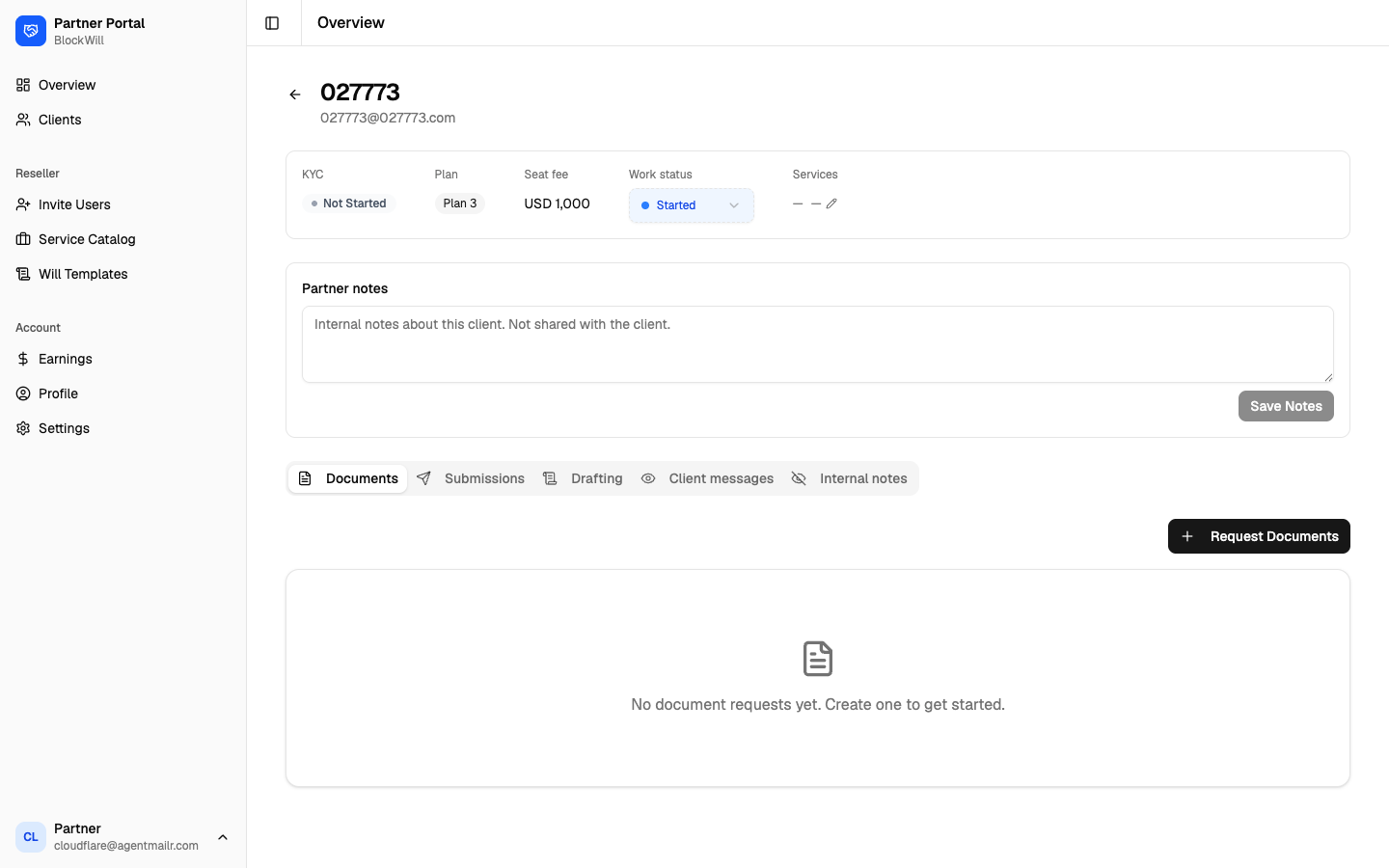
Clients & client detail
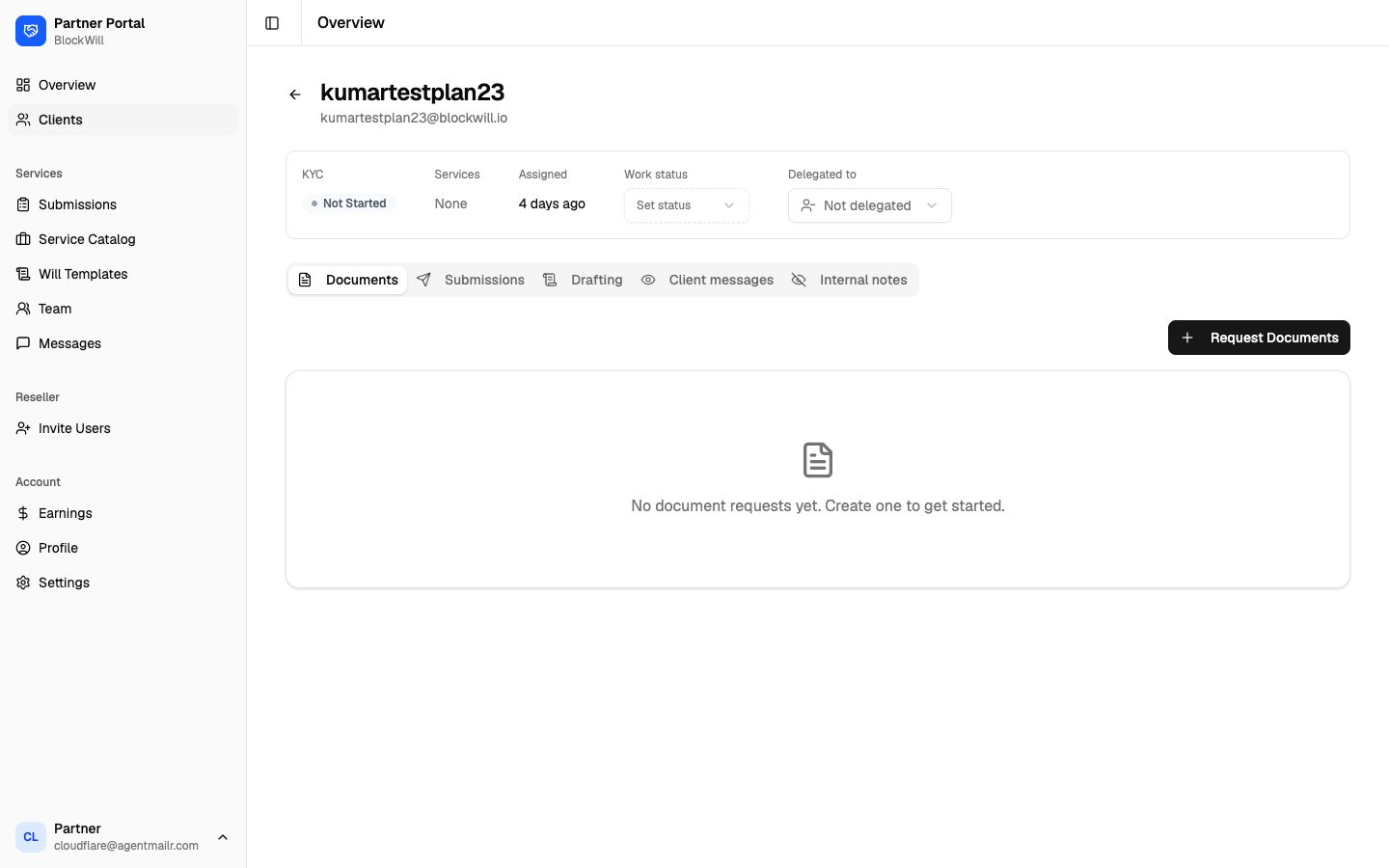
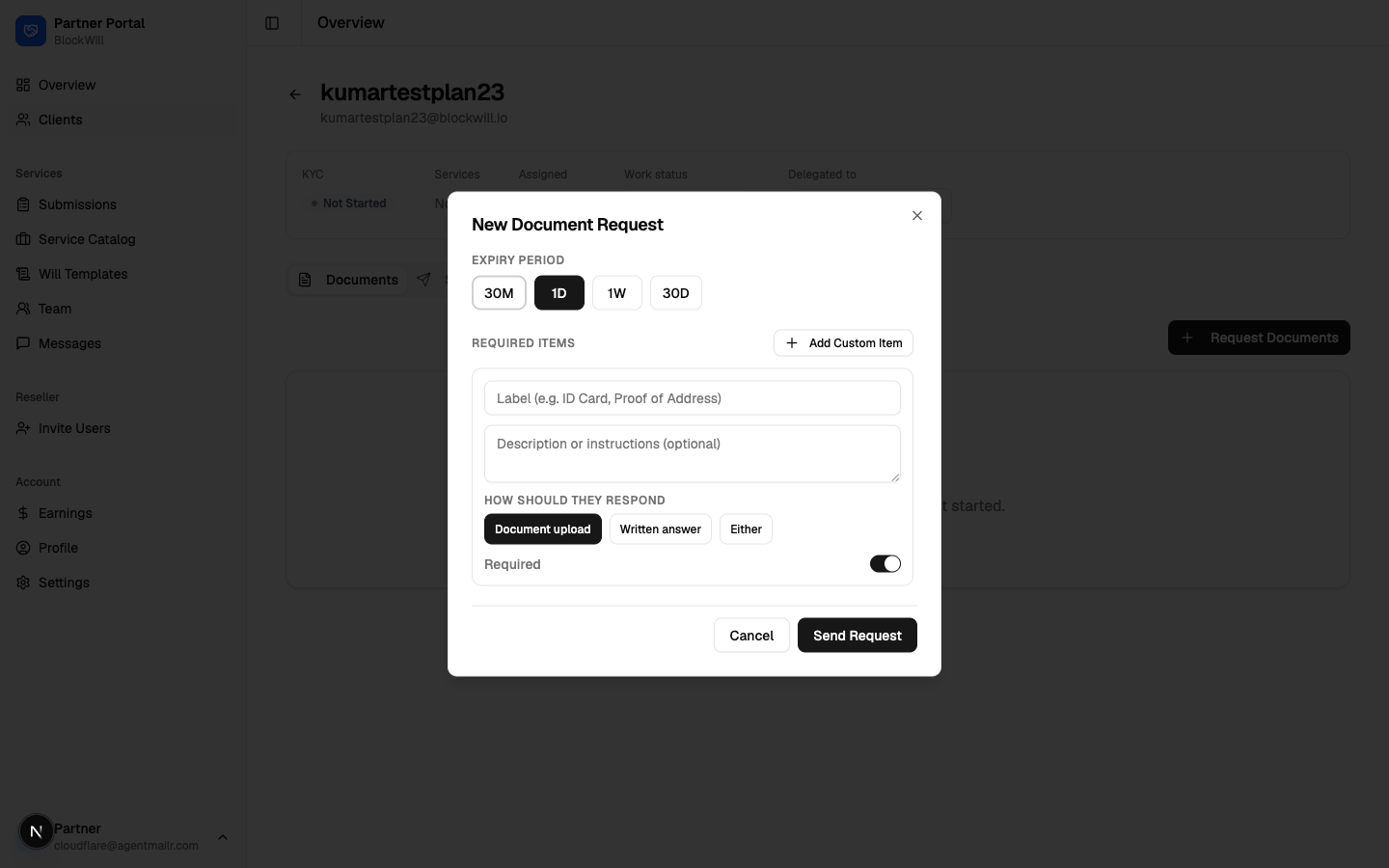
To request documents from a client:
- On the Documents tab, click Request Documents.
- Pick an Expiry Period (30M / 1D / 1W / 30D).
- Add Required Items — label, optional description, and response type (Document upload / Written answer / Either); toggle Required.
- Click Send Request.
Submissions
Submissions send completed client work to BlockWill for review.
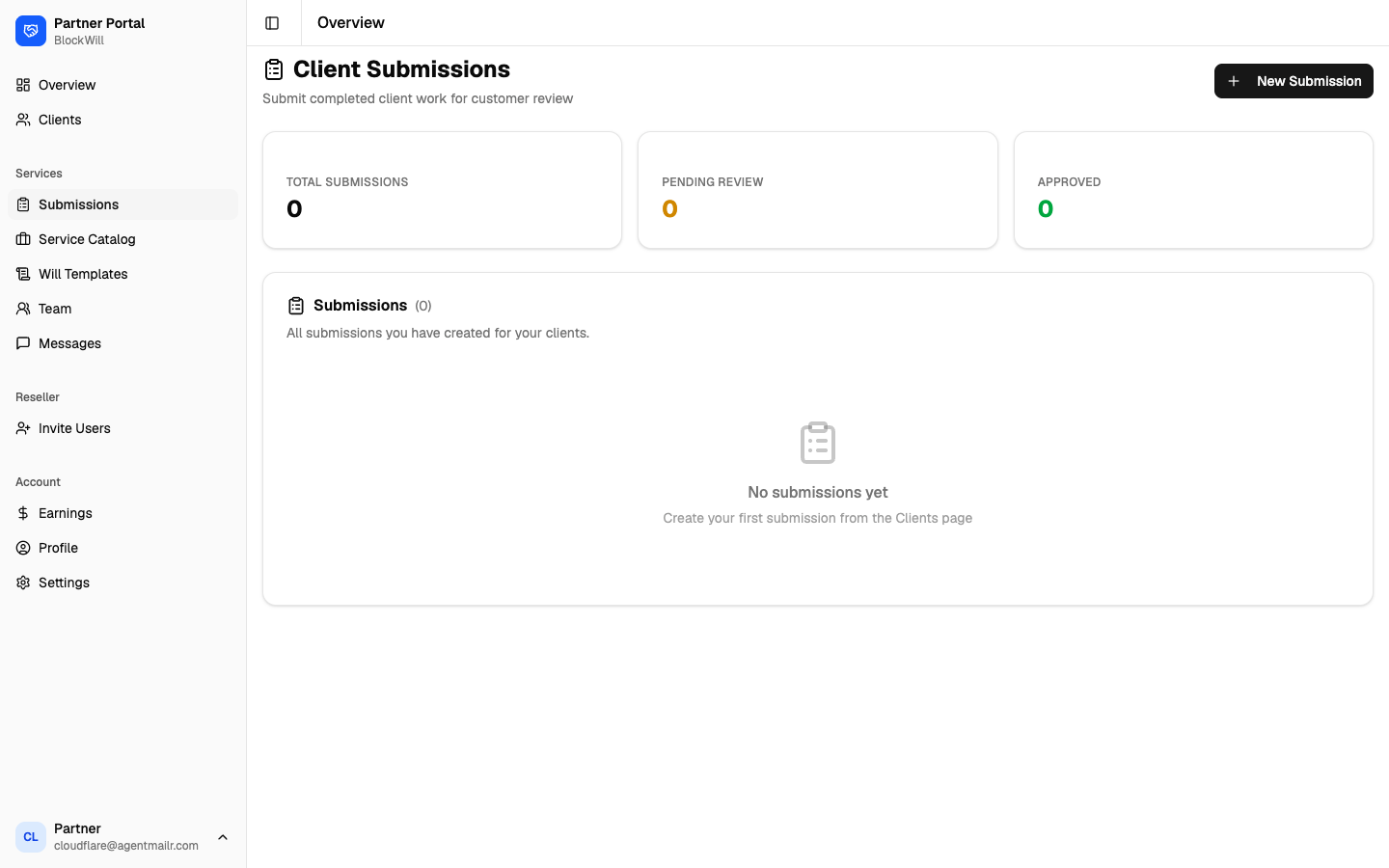
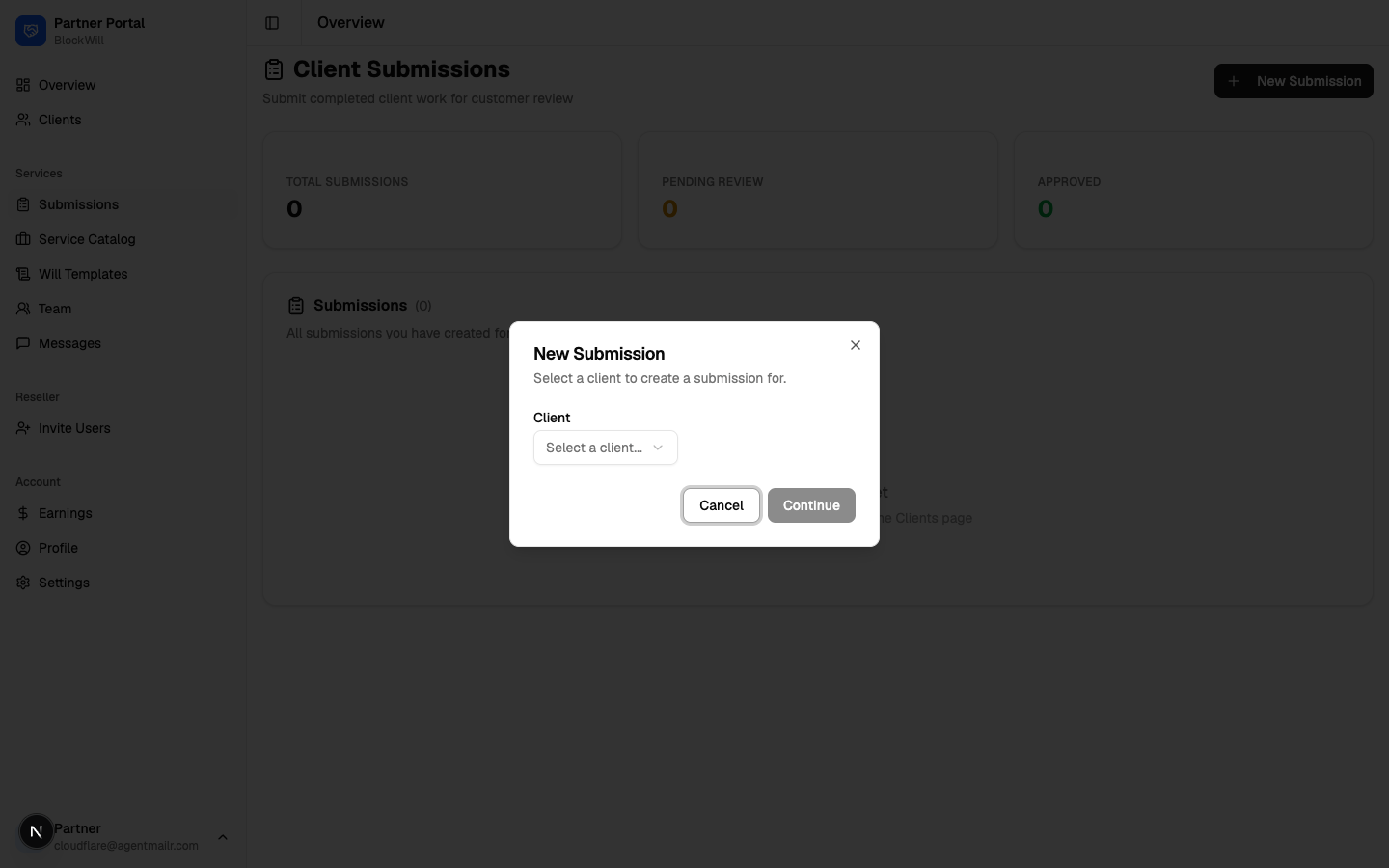
- Click New Submission (or start from a client's page).
- Select a client from the dropdown.
- Click Continue and complete the submission.
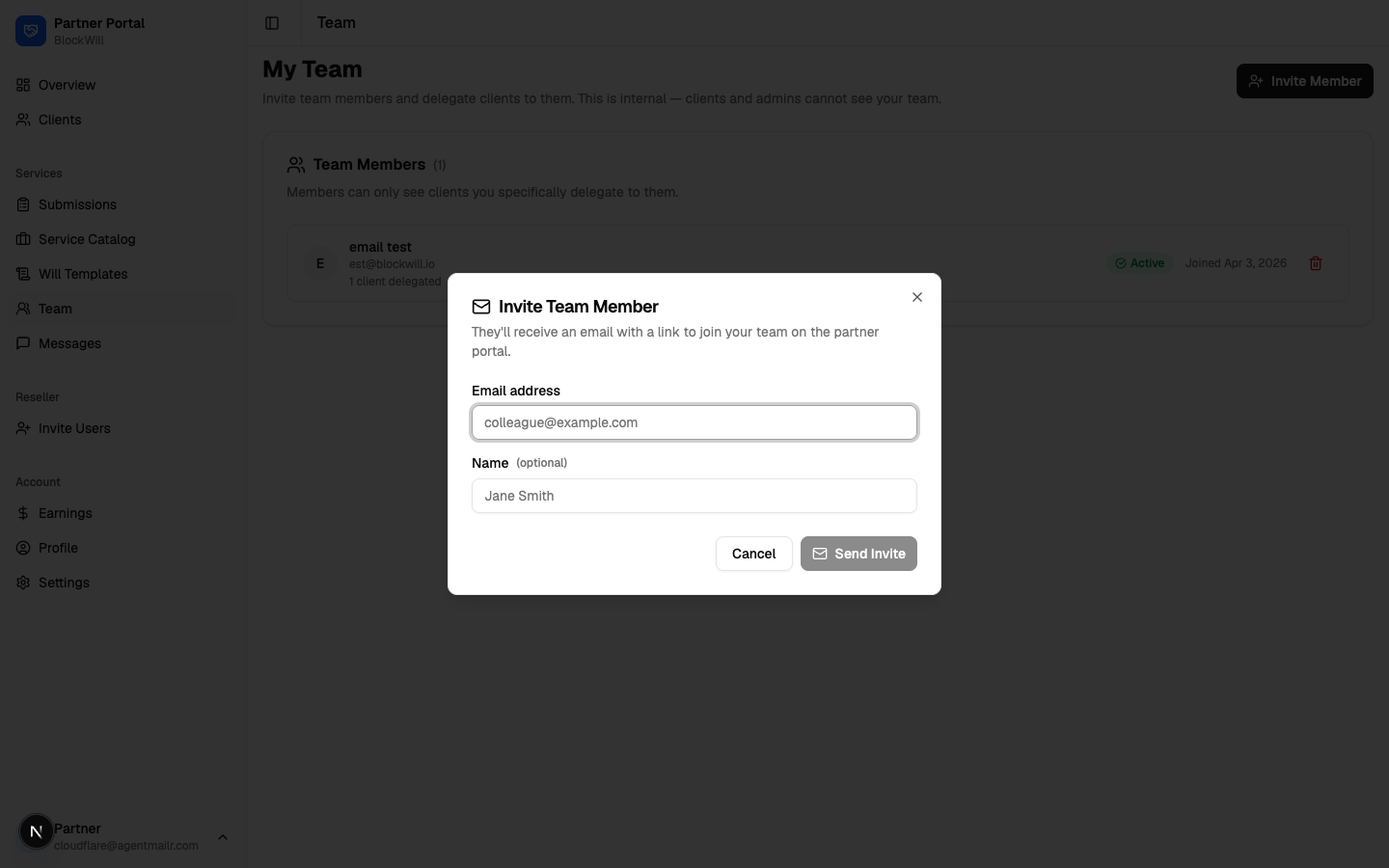
Team
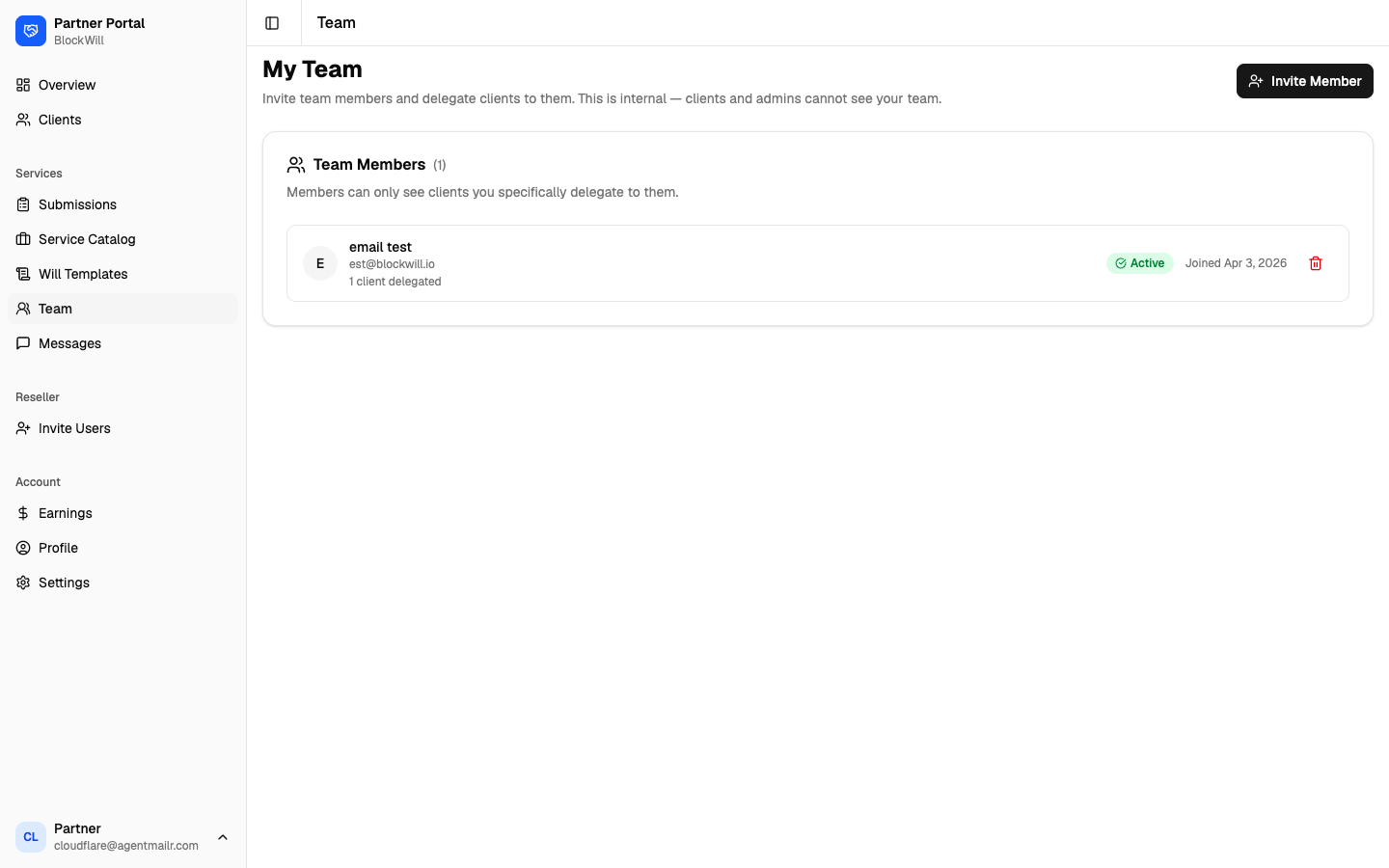
Invite colleagues and delegate specific clients to them. Your team is internal — clients and admins can't see it.
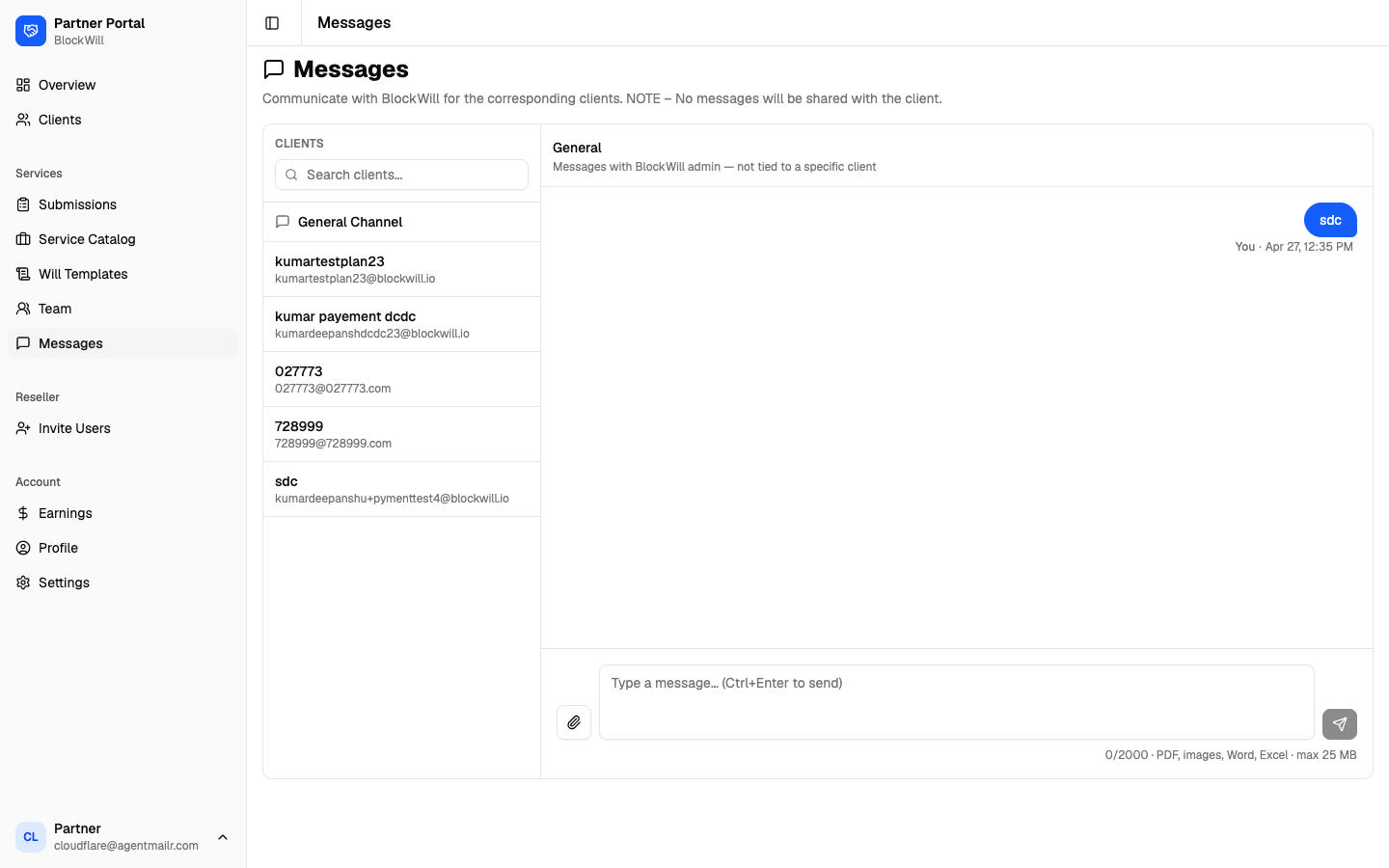
Messages
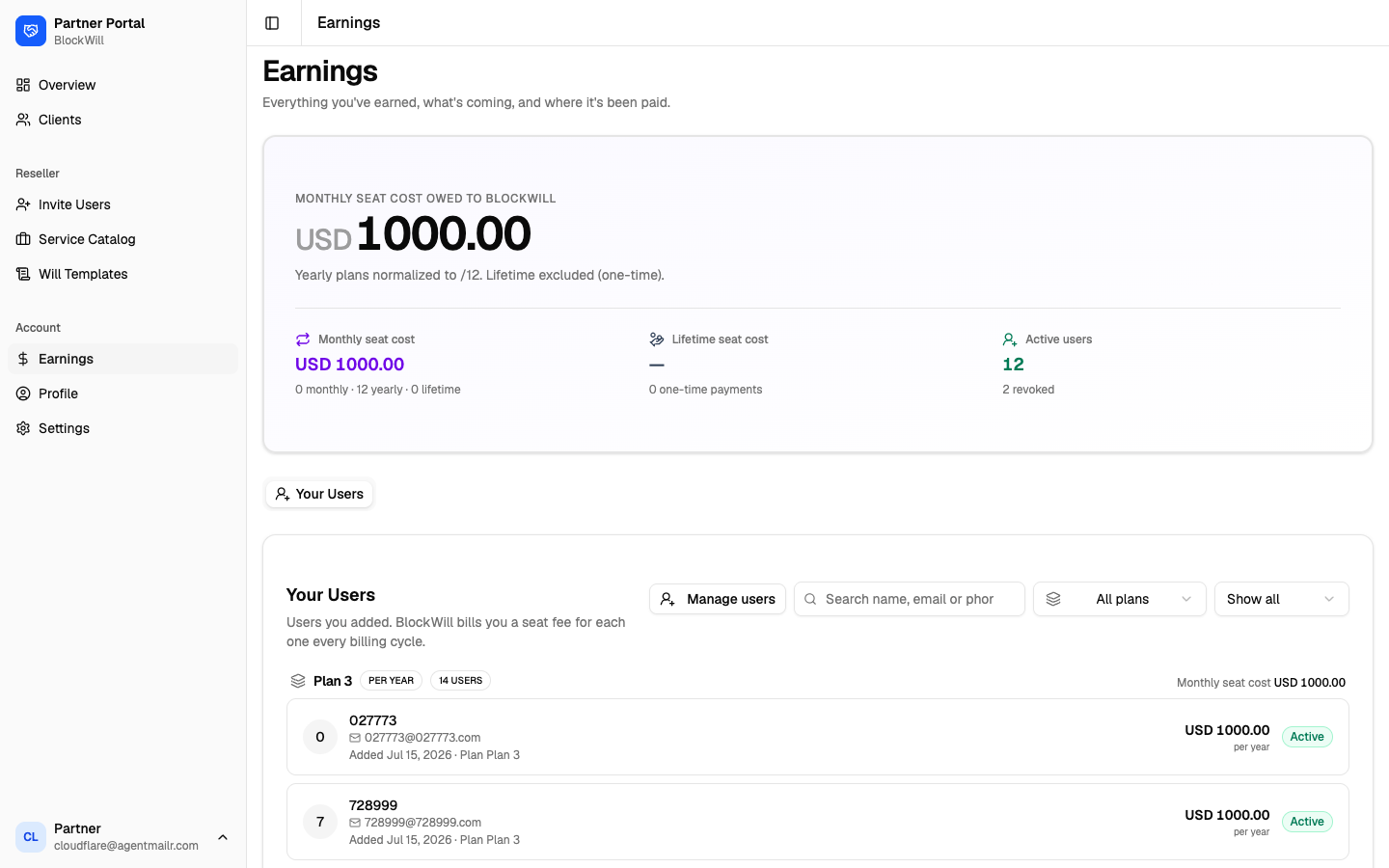
Account — Earnings
Profile
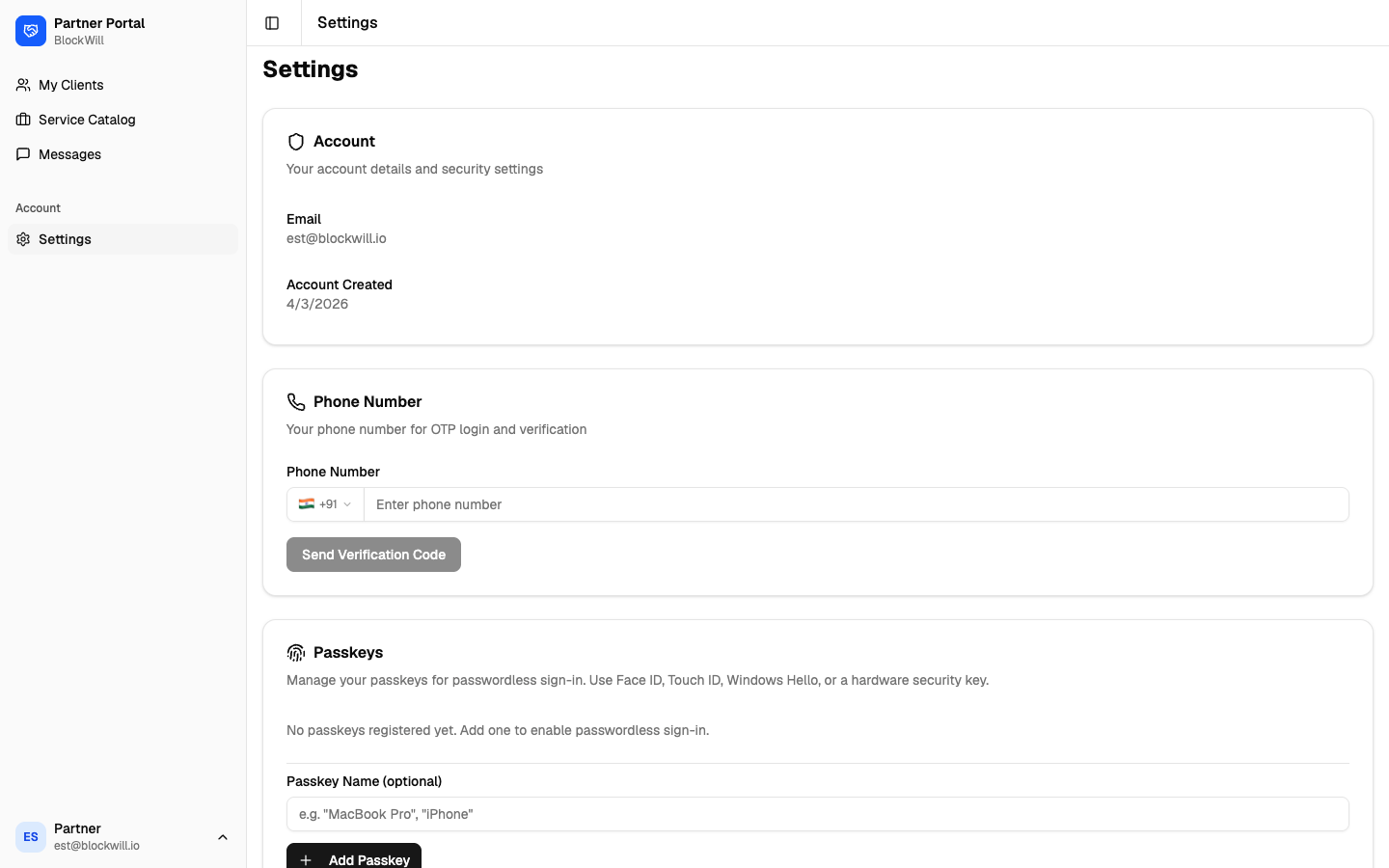
Settings
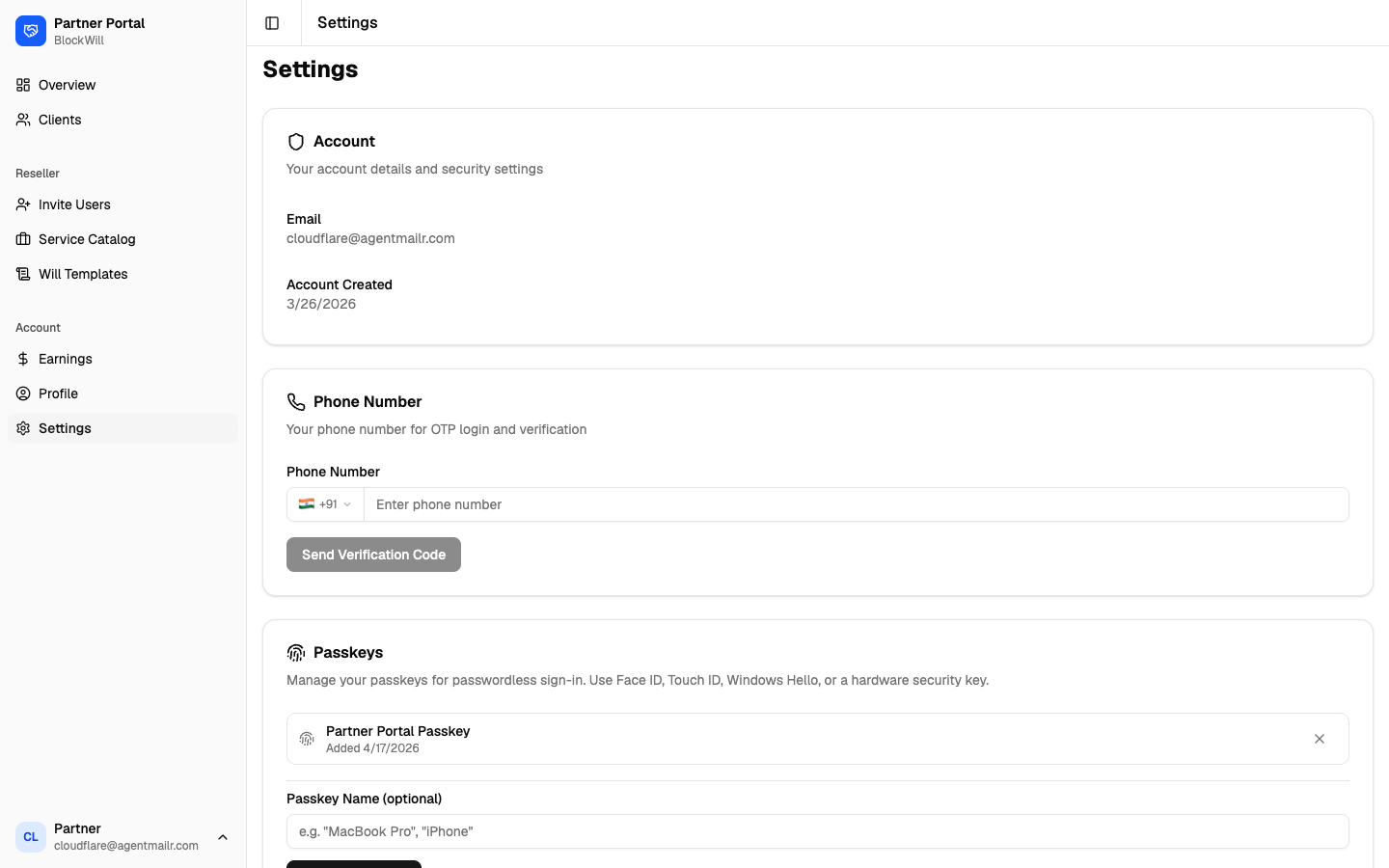
- Phone Number — add/verify a phone for OTP login.
- Passkeys — add/remove passkeys for passwordless sign-in.
- Bank Account — payout account; encrypted (AES-256), only last 4 digits shown.
- Delete Account — irreversible GDPR Article 17 deletion request.
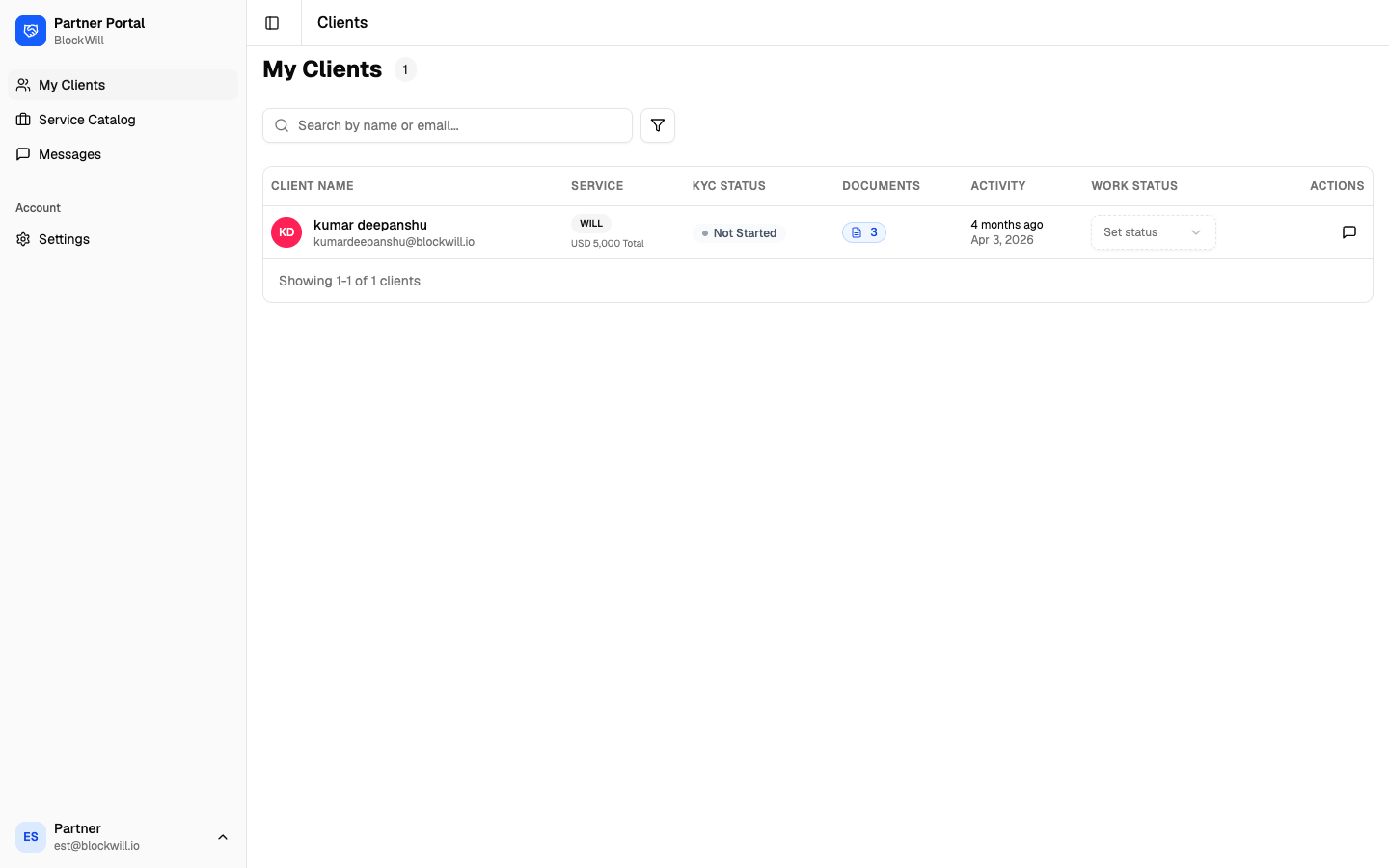
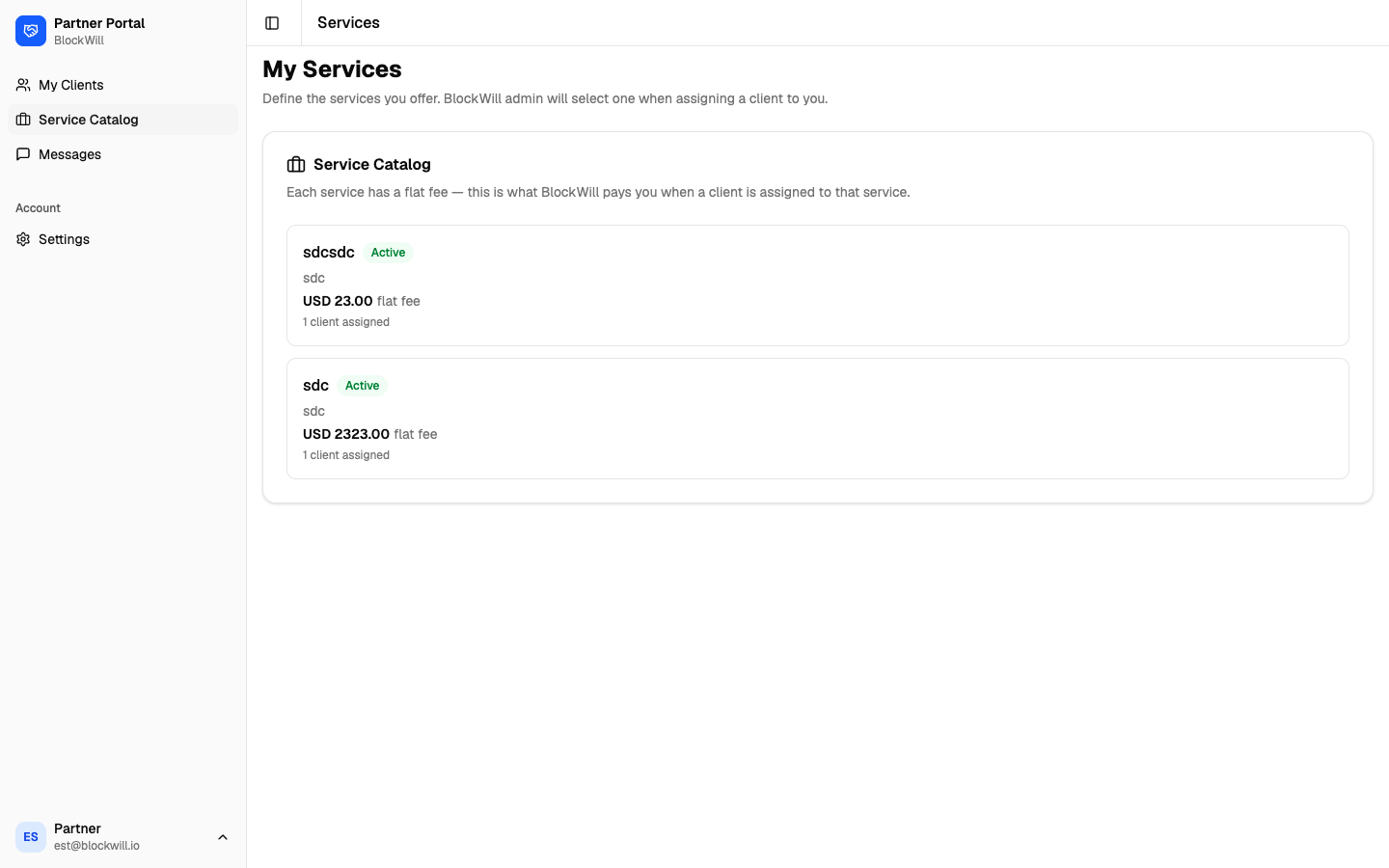
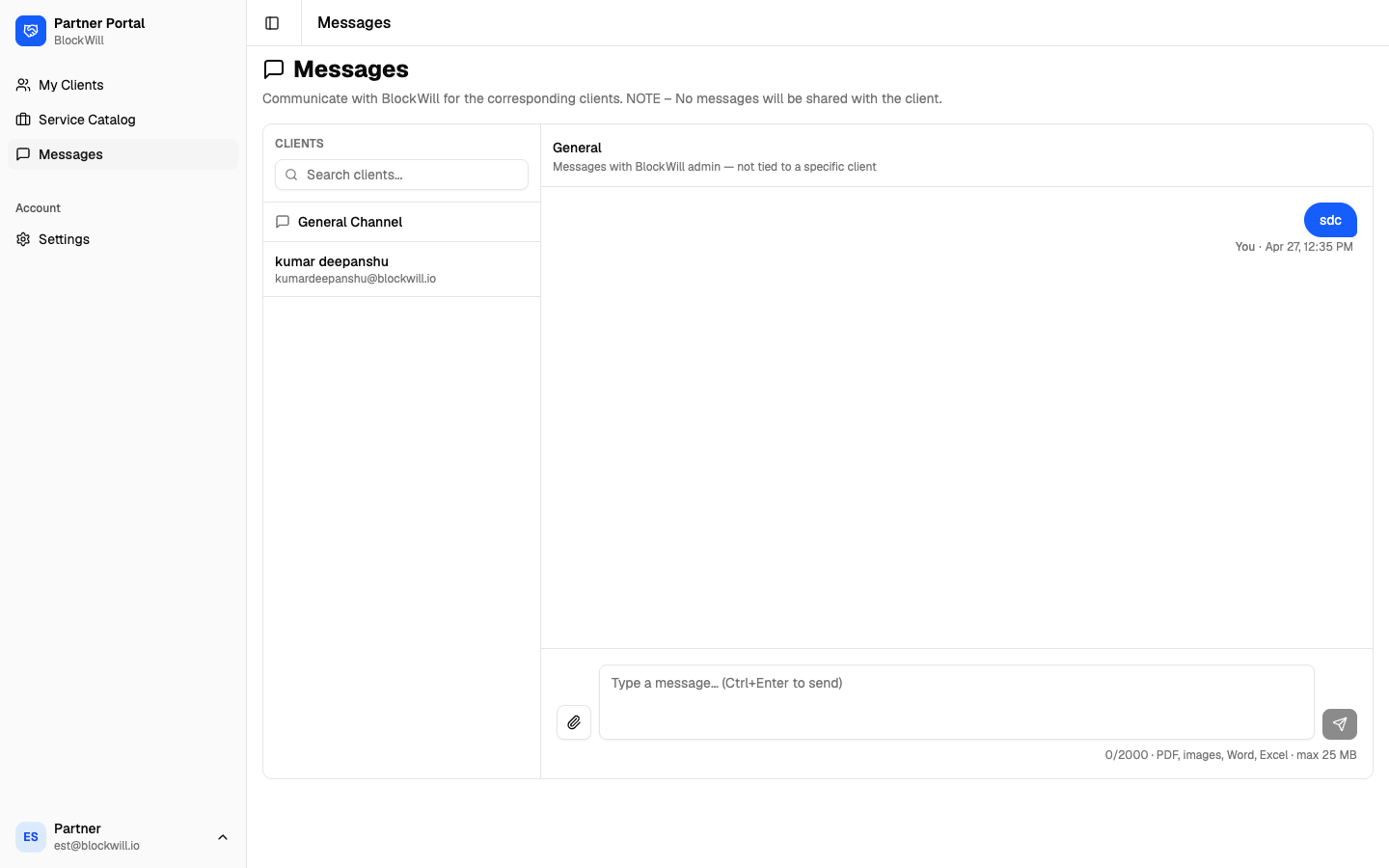
Team member view
Team members are sub-accounts under a service partner. Their sidebar is a focused subset: My Clients, Service Catalog, Messages, and Settings.
Admin panel
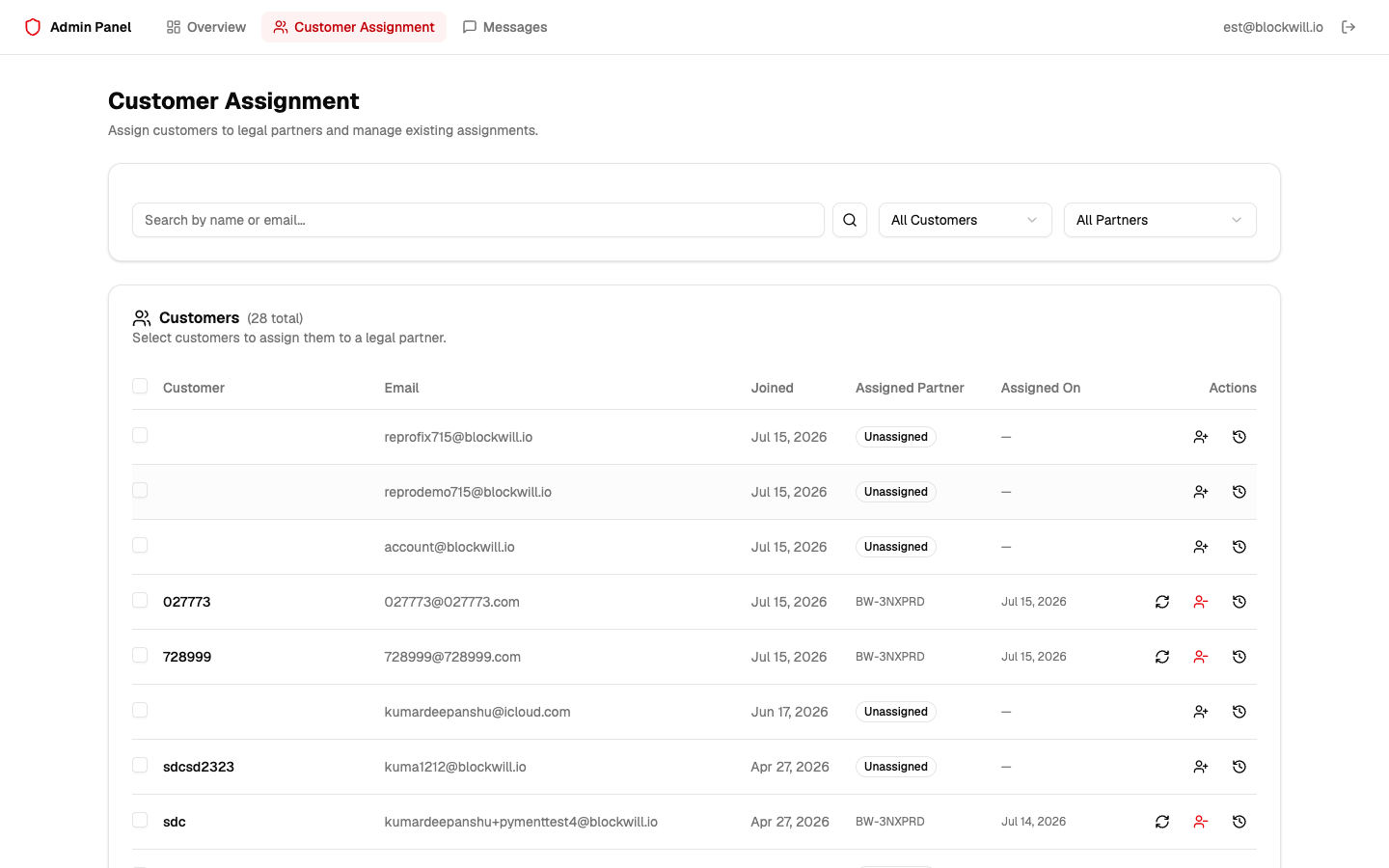
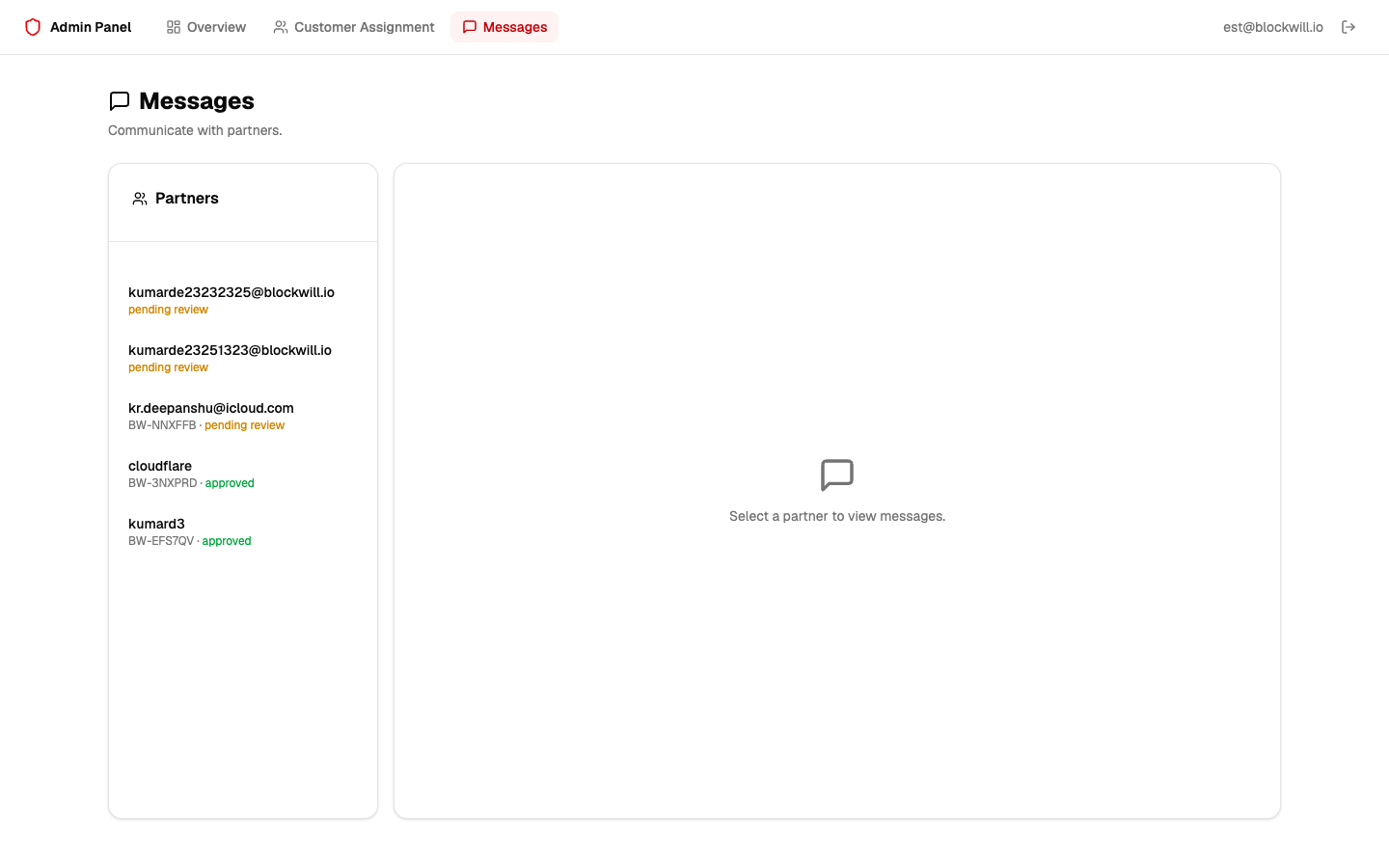
BlockWill staff (any @blockwill.io account) get the Admin panel at
/admin, separate from the partner dashboard: Overview,
Customer Assignment, and Messages.
Signing out & security
- Sign out from the user menu at the bottom-left of the sidebar → Log out.
- Sign-in is passwordless: email code, SMS code, or passkey — nothing to leak.
- Sensitive data (bank details) is encrypted at rest; only masked values are shown.
- Messages with BlockWill are private and never shown to clients.